


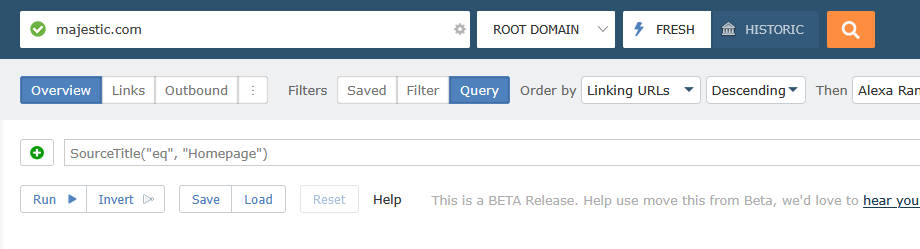
New for 2026: Customise your views in Site Explorer. Majestic Site Explorer now includes API level power.
Towards the end of 2025 we developed an Advanced Filtering option in the Site Explorer backlinks report. With your help, we refined the system. We are delighted to now offer you the power of advanced filters across the following Site Explorer reports:
- Backlinks
- Link Context
- Referring Domains
- Top pages
Here are some examples of how to use these Advanced Filters to get the data you need, quicker!
Advanced Filters in Link Context
Link Context is an awesome tool for finding high quality editorial links. The Link Density Chart highlights where in the page the source link is located. It captures how many other outbound links are on the page and how many are close to your link.
Link Context goes over and above your average backlinks report. It offers embedded data visualiations, and brief snippet of the page around the link. These features make it far quicker to evaluate the inbound links your site attracts.
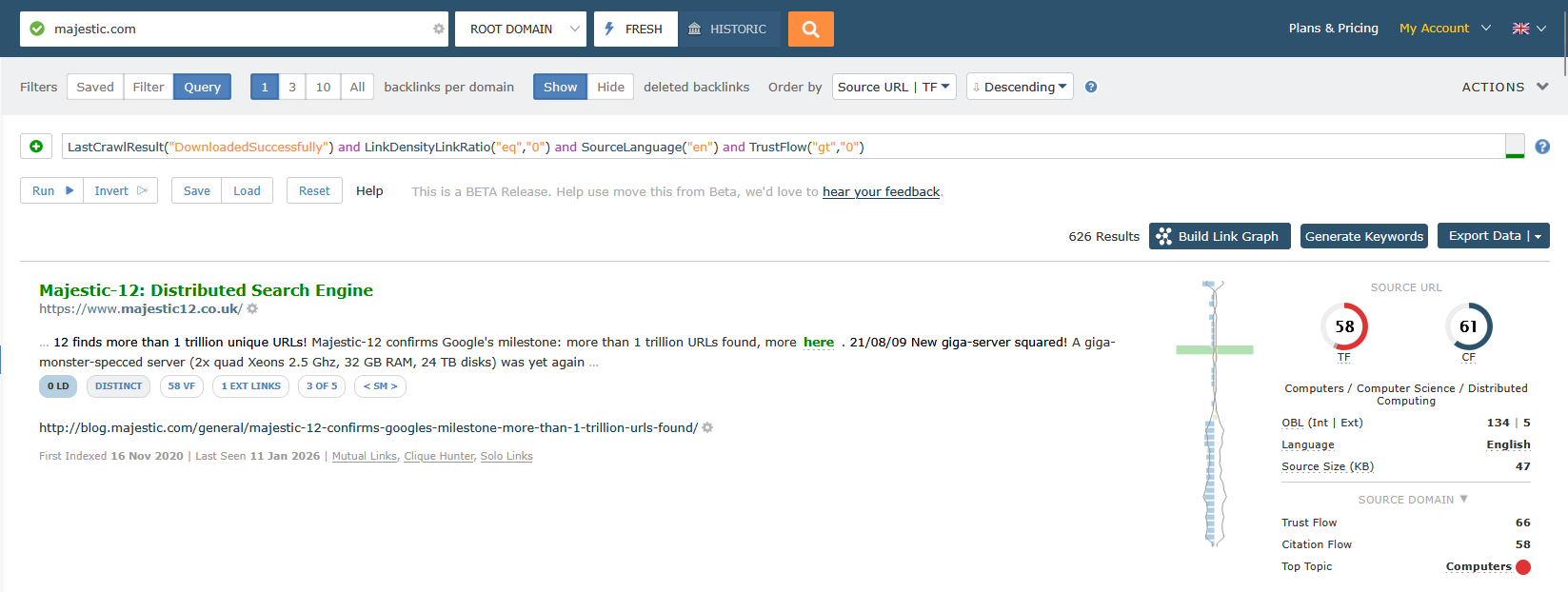
Advanced Filters make it even quicker to hunt out the data you need. For example, the following filter code focuses on editorial links from English language pages with non-zero Trust Flow:
LastCrawlResult("DownloadedSuccessfully") and LinkDensityLinkRatio("eq","0") and SourceLanguage("en") and TrustFlow("gt","0")To try it, copy and paste the code above into the Link Context report in Site Explorer. Like it? Why not save the code and make it easier to access next time you use the page…
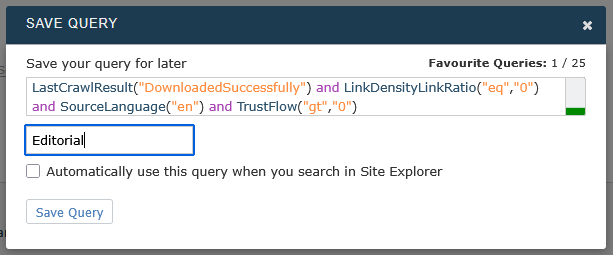
To add this query to your saved & preset queries, click the Save button under the Query Entry panel. Choose a memorable name – we’ve used “Editorial” to describe this particular query, but the choice is yours. We won’t click the “Automatically use this query…” button just yet. Now we click “Save Query”.
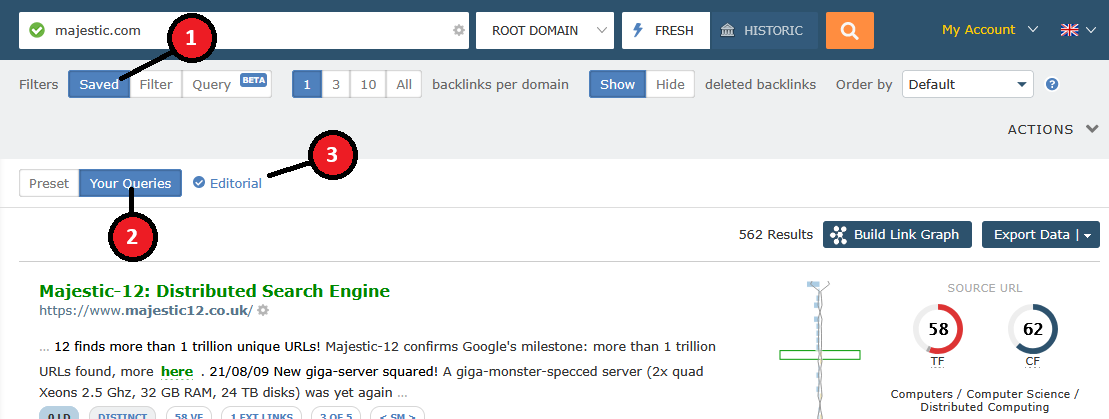
You can access the saved queries through the Load button that sits just to the right of the Save button you’ve just used.
If you now click into “Saved Filters” and select “Your Queries”, you’ll get a list of the queries you’ve created.
The SQL style syntax in Advanced Filters may be a little technical. BUT, once you master advanced filters you can customise Site Explorer. Your Site Explorer, your way.
Advanced Filters in Referring Domains
In the Referring Domains report, the Filter mode selector is moved slightly to the right. This accommodates an existing toggle which switches between different views, defaulting to an overview.
One of the many datapoints contained in the Referring Domain report is the title tag of the homepage. We can chain a number of filters of the same type. In this example, we can chain Title tag filters to obtain a list of Referring Domains where the owner may not have changed the default Title tag:
TitleEquals("My Store") or TitleEquals("My Blog") or TitleEquals("My WordPress Site") or TitleContains("Apache2 Ubuntu Default Page: It works") or TitleContains("Apache2 Debian Default Page: It works") or TitleEquals("Coming Soon") or TitleContains("Future Home of Something Quite Cool")We can use the invert feature to “flip” this filter. So instead of returning rows matching the query, it does the opposite and discards them. So inverting the query above returns Referring Domains that don’t have any of the matching title tags.
There are other query filters you may find helpful to use. For focusing on regional domains, you can filter by the estimated language of the domain. The DomainEndsWith filter can be great for filtering by national TLDs. The panel will try to help with auto-complete suggestions when you start typing a Filter.
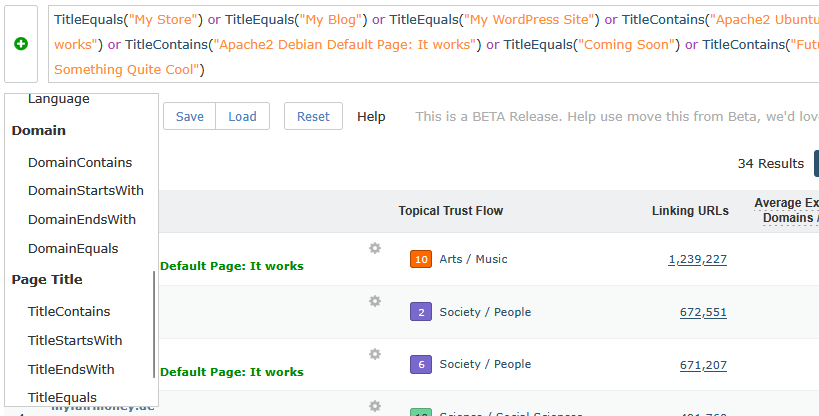
As with Link Context, you can save and name filters to make them available in the “Saved” filters mode.
Advanced Filters in Top Pages report.
Below, we’ll use Advanced Filters in Top Pages to highlight how you can use Advanced Filters as a template. That is, generate a useful query, but modify it to suit the site (or task) in question.
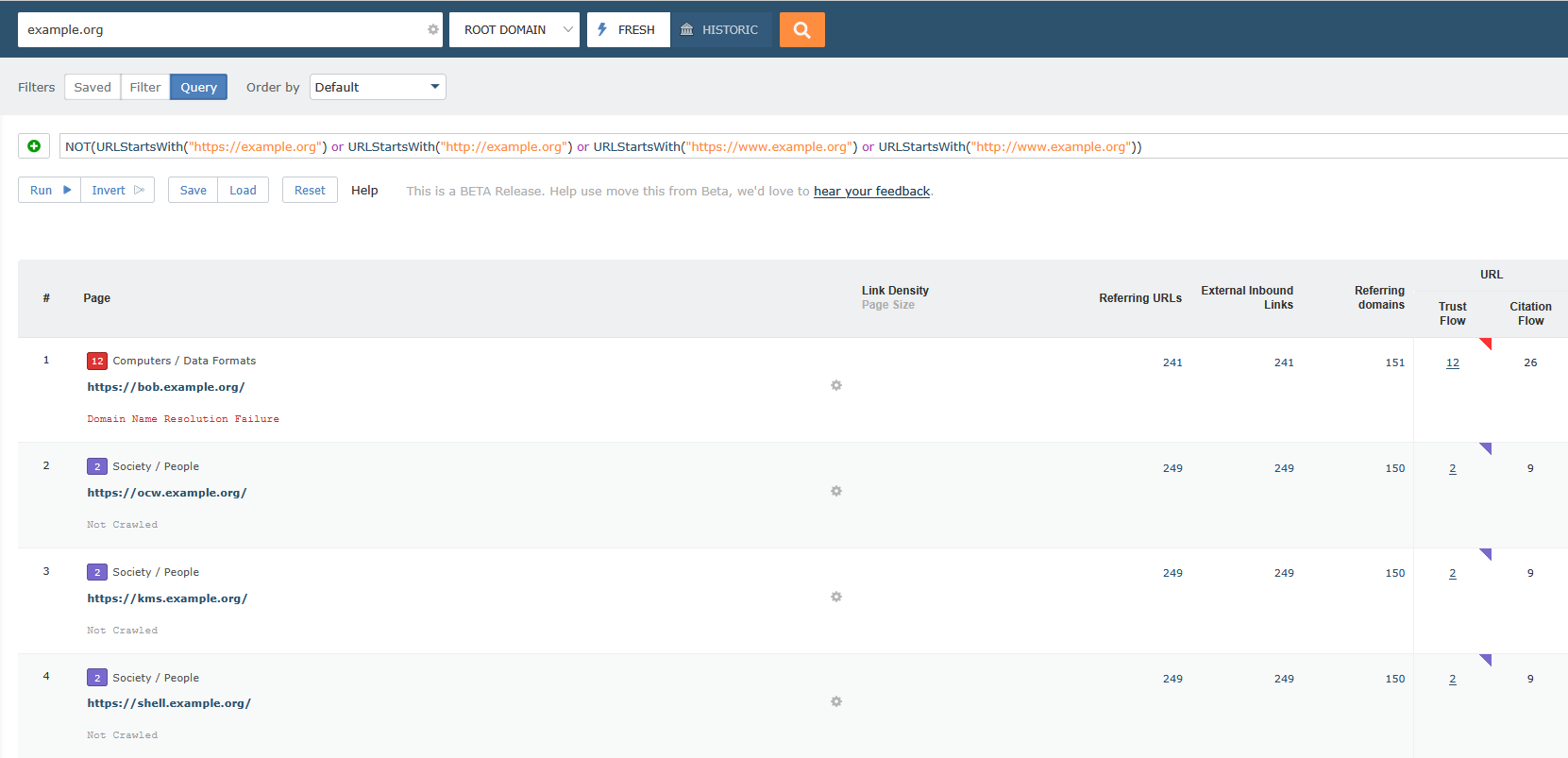
The screenshot above shows a chain of URLStartsWith filters surrounded by a ‘NOT’ clause. This chain removes all the URLs that start with normal www and non-www patterns. There is a little complexity to using this in practice. You need to remember to change the query for every client. Also, it may not be suitable for sites with complex subdomain setup. But, if curious, you can find the query below to copy and paste:
NOT(URLStartsWith("https://example.org") or URLStartsWith("http://example.org") or URLStartsWith("https://www.example.org") or URLStartsWith("http://www.example.org"))You’ll need to change “example.org” to the site of concern before running this query.
On a similar theme, the following short filter gives you the power to find redirects and canonicals that point off-site. Just change yourdomain.com to your site when you search in Site Explorer:
NOT(RedirectToContains("yourdomain.com"))This is just the tip of the iceberg. If you’ve got a few tasks relating to on-site content in your audit process, you could set up a favorite query for each, perhaps one that checks 404 pages. Another to find missing page titles.
To wrap up.
We hope you can invest a few moments to take a look at Advanced Filters. If you’ve ever been frustrated with the data shown in Site Explorer isn’t quite how you’d like it, then we hope this update is for you.
For a deeper guide on filters, please take a look at the most recent announcement on advanced backlink filters.
To maximise the flexibility Site Explorer offers you, we’ve tried to offer API level power of extracts in a web interface.
Please be aware that these filters are still marked as ‘Beta’. We believe they have the power to help you get your job done faster. We’ve ironed out a few issues but still feel there are a few enhancements we can yet make.
We welcome your comments, and suggestions. If you find a great filter combination – let us know!

- Safe Link Building in 2026 - February 19, 2026
- How to Optimize for Google AI Mode - January 23, 2026
- Advanced Filters available across Site Explorer - January 19, 2026
Maybe it would be nice to have an AI Chatbot integrated into this…. I tell it what Data i need and it creates the API Calls for it to get it from Majestic. And maybe the Python or JS Scripts to visualize it in interesting new ways. Maybe possible with existing OpenSource LLM modells like GLM4.7 ?
January 22, 2026 at 2:16 pmHi,
Thanks for the thoughts.
As it happens, we are investigating an MCP server. Our hope is that this will facilitate the form of LLM interaction you've outlined. Interesting suggestion on the AI chatbot – appreciate that.
Many thanks!
January 22, 2026 at 4:45 pmHi Sir, I'm working on (https://lbtravel.co.uk/) on this website for almost a year now, and it was working fine till now. But for the last 15 days, I'm facing issues; there was a sudden drop in my ranking. What should I do? Please explain and help. Your suggestions will be of great help.
January 26, 2026 at 12:33 pmHi. I'm afraid Majestic is not a SEO Consultancy. We can answer questions about our metrics and backlink data, but cannot give advice on what may be affecting your ranking. Backlinks are just one ranking factor among many possibilities. See https://blog.majestic.com/what-are-backlinks/.
January 26, 2026 at 2:52 pm